1. Start from the “Create your own” section.
If you want to design and post a product for sale on Zazzle, you must start from the "Create your own” section to start from a blank template.
Once you have selected the product you want to design along with any color, paper type and sizing options, click on “Add your Design” to start making your creation.
Remember: Don’t forget to add Templates to your design, so customers know what needs to be changed. Check out “Creating a Product Template” to see how easy this is.
2. Select Options
Once you have your design ready to go, you can navigate to the next screen either by clicking on “Next:” on the top right corner of the screen, or toggle to “Options” that appears in the top middle of your screen. Here you will be able to select your preferences for things like card stock, Frame, Material and envelopes.
3. You’re ready to “Sell it”.
Now you have curated your design and selected additional appearance options, you can start the post for sale flow to Sell your design. This option is nestled under the “Review” Tab or if you click on "Save and Exit”.
📌 Important: If you are not seeing the “Sell it” option or is it greyed out, check the following:
- If you're posting apparel, you must select a size before listing it for sale.
- We only allow postings for most paper products that include envelopes. Change this option from “None” to “White”.
- You have not started your design from a blank template. Select one from the Create your own section of the site.
- You are using Icons from the design tool, which are reserved for customer use only.
- You are using content that you do not own.
See the last two steps in action…
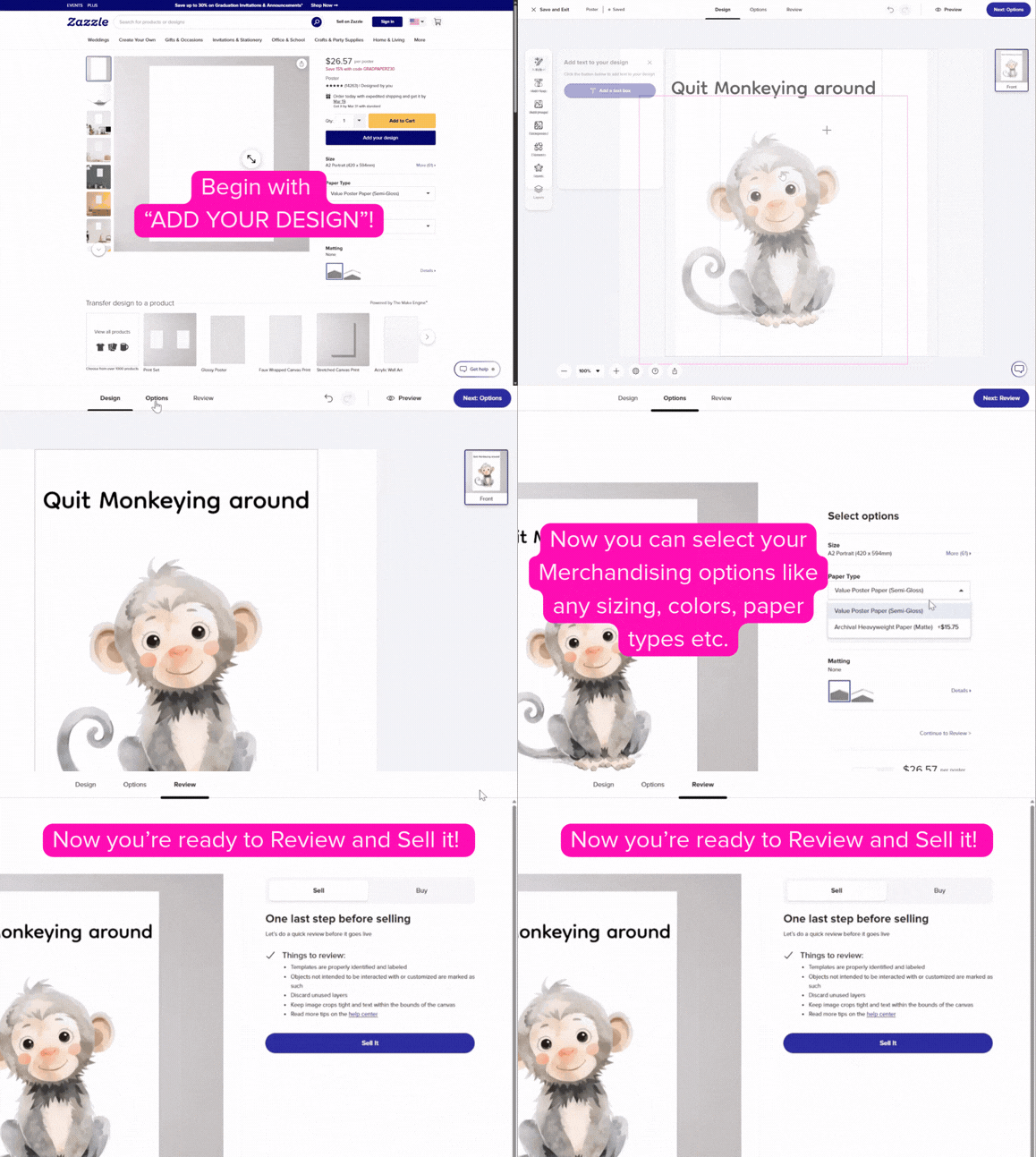
4. Post for Sale Flow- Set Your Product Options
You'll see a page with settings to control how your product appears in the marketplace. Here's what you need to do:
Product Information
Add a title, description, and tags to help customers find your product in search results. For best practices, check out the Titles, Descriptions, and Tagging Tutorial.
Product Availability
Choose which products your design will be available on. By default, it's available in all styles and colors, but you can limit it (e.g., only dark apparel or eco-friendly options).
Product Categorisation
Select the public and store categories for your product by clicking "Select" and choosing from the pop-up window.
Product Rating
Your product rating determines who can view and purchase your design.
- G-rated products appear in the marketplace by default.
- Higher-rated products will only be shown to users who allow them in their account settings.
- Ratings may vary by region (e.g., Zazzle.co.uk vs. Zazzle.com.au).
Product Visibility
Choose how your product is displayed:
- Public: Listed in the marketplace.
- Hidden: Not shown until you're ready to publish.
- Direct-Only: Available via direct links or API integration.
Product Customization
Decide if customers can personalise your design (e.g., change text, adjust images, or move elements).
📌 Note: Once published, this option cannot be changed. If you need to update it, you'll have to recreate the product.
Product Royalty
Set your earnings percentage (default is 10%, adjustable from 5% to 100%). Use the Royalty Information section to find the best balance between price and profit.
Resources:
3. Accept the User Agreement
You must agree to Zazzle's terms before posting. Key rules include:
✔️Use only original or legally licensed content.
✔️No spamming, threats, or harassment.
✔️Users must be 13 or older.
✔️No guarantees—use at your own risk.
4. Post & Confirm
Click "Post It", and you’re done! 🎉 You'll see a confirmation page with options to promote your product.
If you have any further questions, feel free to ask! 🚀
⚡Supercharge your sales⚡
Earn a 15% referral fee every time someone purchases through your Zazzle link—whether shared on your blog, website, or social media—for free! Here's how to get started.