Here's how you can add an image, text, or design to the other sides of your product.
Tutorial for desktop
To add an image or design on the back of a product, open the Design Tool from the product page. 🎨
- On the product page under the "Add to cart" button, click on the "Personalize this design/Edit this design" button.
Once you've entered the design tool, then on the right you should see images of each side of the design (ie. front, back etc...) simply click on the image to switch sides. Alternatively, if there are personalized template fields that you'd like to adjust on the back, you would see them by scrolling down on the left side of the "edit" panel.
For Mobile
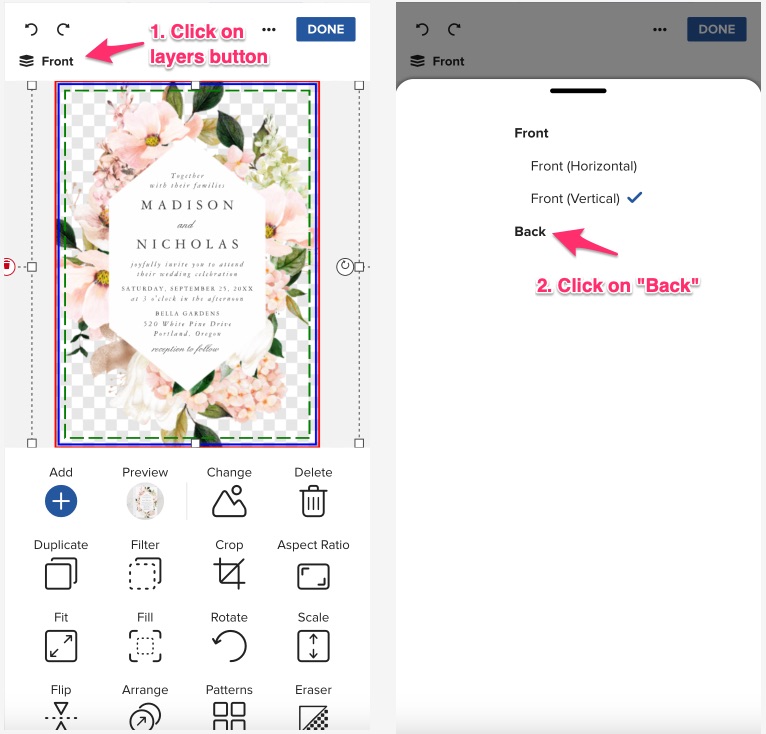
📱 If you're on mobile, once you've entered the design tool, you should see a little layers icon in the top left corner labeled "Front". Tap that and you should be able to switch to the back.
Note: Not all products have designable areas on all sides, so if you don't see it in the layers menu, then it's not available.